
WordPress backups, scheduled and stored off the server
WPShift backs up a WordPress site's files and database on a schedule you set for each site, and on demand. The copies are stored away from the server they came from, in the storage included with your plan or in an S3-compatible account of your own.
Free plan available. Paid plans include a 7-day trial. Server costs are separate.
In the dashboard

Where it sits
Backups leave the server and are stored away from it.
 WPShift
The dashboard that sets up the server and manages what runs on it.
sets up and manages
Managed in WPShift, outside the server
Plans
Which plans include backups
- Free €0 included
- Solo €5,99 included
- Studio €14,99 included
- Scale €29,99 included
- Automated backups, from the Free plan
- €0
- Extra storage above the included amount, per GB
- €1,50
Included backup storage: 512 MB on Free, 2 GB on Solo, 4 GB on Studio, 10 GB on Scale. On Studio the extra storage is listed at €1,00 per GB.
Your own S3-compatible storage is billed by that provider. Per month, excluding VAT.
A backup can be restored over the original site or onto a different one, and its files and its database download separately. Automated backups are part of every plan. The included storage differs: 512 MB on Free, 2 GB on Solo, 4 GB on Studio and 10 GB on Scale.
Steps
How it works
-
Step 1
Set a schedule per site
Each site has its own schedule and its own number of copies to keep.
-
Step 2
Choose where copies are stored
The storage included with your plan, or an S3-compatible account that you control and are billed for directly.
-
Step 3
Restore where you choose
Over the original site, or onto a different site so you can inspect the restored copy first.
Storage
Kept away from the server they protect
Use the storage included with your plan, or connect your own account at Amazon S3, Cloudflare R2, Wasabi, Backblaze B2 or another S3-compatible provider. With your own account the provider bills you, you hold the keys, and the copies do not depend on your WPShift subscription.

Two parts
Files and database, downloadable separately
Each backup keeps the files and the database as separate parts. They are a standard archive and a standard SQL export, and you can download either one on its own.
Retention
How many copies are kept
Each site's schedule has a retention count, and copies beyond it are removed. Storage above the amount included in your plan is billed per GB a month.

The export
How the database export is taken
The export runs as a single transaction with table locking switched off, so the site keeps reading and writing while it runs. On a large database it still uses disk and CPU, which is a reason to schedule backups outside your busiest hours. If mysqldump is unavailable or lacks the privileges it needs, WPShift exports through WP-CLI.
The database and the file archive are each recorded with a checksum.
Questions
Questions about backups
- How do I restore a backup?
- Choose the backup and the destination. Restoring over the original replaces what is there. Restoring to a different site first lets you inspect the result.
Related features
-
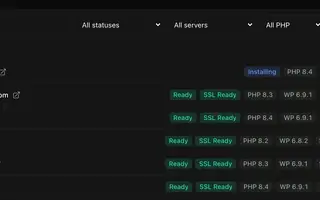 Site management Every plan Install, copy or import WordPress sites and manage plugins, themes, logs and settings in one place.
 -
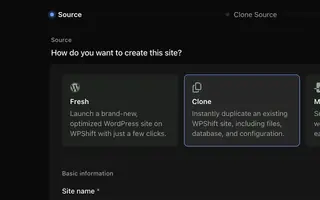 Staging & cloning From Solo Clone a site to test a PHP, plugin or theme change on a copy.
 -
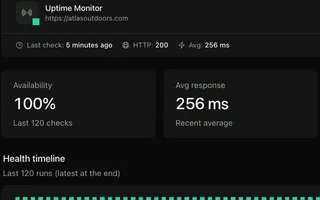 Uptime monitoring From Solo Each monitored site requested from outside its server, with history and an alert on repeated failures.
 -
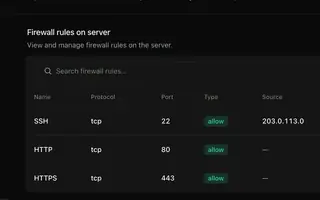 Security & firewall Every plan A default-deny firewall, SSH keys per person, and a separate user and database login per site.
Set up your first WordPress server
Connect your cloud account, let WPShift prepare the server, and add a site.
Free plan available. Paid plans include a 7-day trial. Server costs are separate.
The setup, in three steps
- Connect your cloud account
- Choose the region and size
- WPShift sets up the server