
WordPress server setup in your own cloud account
WPShift creates a server in your own cloud account and sets it up for WordPress. You add an API key for DigitalOcean, Hetzner, Linode, AWS, Google Cloud or Vultr, choose a region and a size, and WPShift installs Nginx, PHP, MariaDB and Redis and applies the firewall and access settings.
Free plan available. Paid plans include a 7-day trial. Server costs are separate.
In the dashboard

Where it sits
The server is created in your own cloud account.
 WPShift
The dashboard that sets up the server and manages what runs on it.
sets up and manages
Managed in WPShift, outside the server
Plans
Which plans include cloud servers
- Free €0 included
- Solo €5,99 included
- Studio €14,99 included
- Scale €29,99 included
- Connecting your own cloud account, from the Free plan
- €0
- Your server, billed by your provider
- their price
- Added to that bill by WPShift
- €0,00
- Or a WPShift Cloud server, from
- €5
Servers WPShift manages: 1 on Free and Solo, 3 on Studio, unlimited on Scale.
Per month, excluding VAT. A WPShift Cloud server is billed on top of the plan.
There are two bills. Your provider bills you for the server, at their price, and WPShift bills you for the software. Your plan sets how many servers and sites WPShift manages. Connecting your own cloud account is part of every plan, including the free one.
Steps
How it works
-
Step 1
Connect your cloud account
Add an API key for one of the six supported providers. WPShift uses the key to create servers. The account stays yours.
-
Step 2
Choose the region and size
Pick where the server runs and how much capacity it has. Your provider's own prices apply to whatever you choose.
-
Step 3
Let the setup run
WPShift installs the stack and configures the firewall, and shows each step and its result as it goes.
The stack
What gets installed on the server
The four are installed and configured as one setup. When it finishes, the server is ready to take a site.
- Nginx
- serves the pages
- PHP
- runs WordPress
- MariaDB
- stores the content
- Redis
- keeps frequently used data in memory

Ownership
The server stays in your account
WPShift creates the server through your provider's API, and the provider invoices you for it directly at their prices. WPShift adds no markup to that bill.
If you stop using WPShift, a server in your own account stays there and keeps running. DNS, mailboxes, backups and monitoring stop with the subscription, so check which of those you depend on before you cancel. WPShift Cloud servers have separate billing terms.

Separation
Sites are kept apart on the server
Each site gets its own system user, its own directory and its own database credentials, and a site's SFTP access is confined to that site's directory. The sites still share the server's CPU, memory and disk.
Access
SSH access when you want it
The server's SSH keys are managed from the dashboard. Services, PHP settings, firewall rules, sites and databases all have dashboard controls, so SSH is there for the exceptions. No Linux experience is required.
Questions
Questions about cloud servers
- Can I buy the server from WPShift?
- Yes. A WPShift Cloud server is bought through WPShift, managed in the same dashboard and billed on your WPShift invoice. It does not sit in a provider account of your own.
- How many WordPress sites can one server run?
- Two limits apply, and either can be reached first. Your plan sets how many sites WPShift will manage. The server's CPU, memory and disk set how many it runs well.
Related features
-
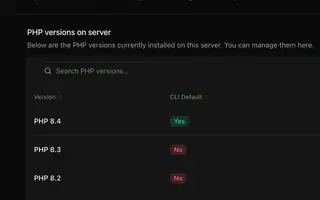 PHP versions Every plan Install several PHP versions on one server and choose one per site.
 -
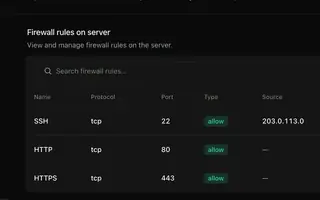 Security & firewall Every plan A default-deny firewall, SSH keys per person, and a separate user and database login per site.
 -
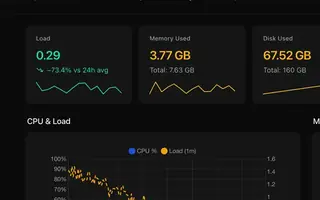 Server monitoring Every plan CPU, memory, disk usage and load for every server, with the history behind each reading.
 -
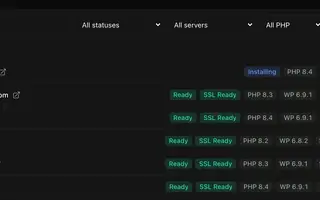 Site management Every plan Install, copy or import WordPress sites and manage plugins, themes, logs and settings in one place.
Set up your first WordPress server
Connect your cloud account, let WPShift prepare the server, and add a site.
Free plan available. Paid plans include a 7-day trial. Server costs are separate.
The setup, in three steps
- Connect your cloud account
- Choose the region and size
- WPShift sets up the server